AutoSign guide · Updated October 2, 2026
How to create a handwritten signature from your name on iPhone
Choose a style, generate a signature from your name, check the lettering, and save the design in AutoSign.
Start with the name you actually use
Decide whether to use your full name, first name and surname, or initials. For a document, follow the recipient’s instructions. Generation needs an internet connection. Free use has a generation limit; PDF signing and signature image export require Pro.
Get AutoSign ↗Step 1
Choose a signature style
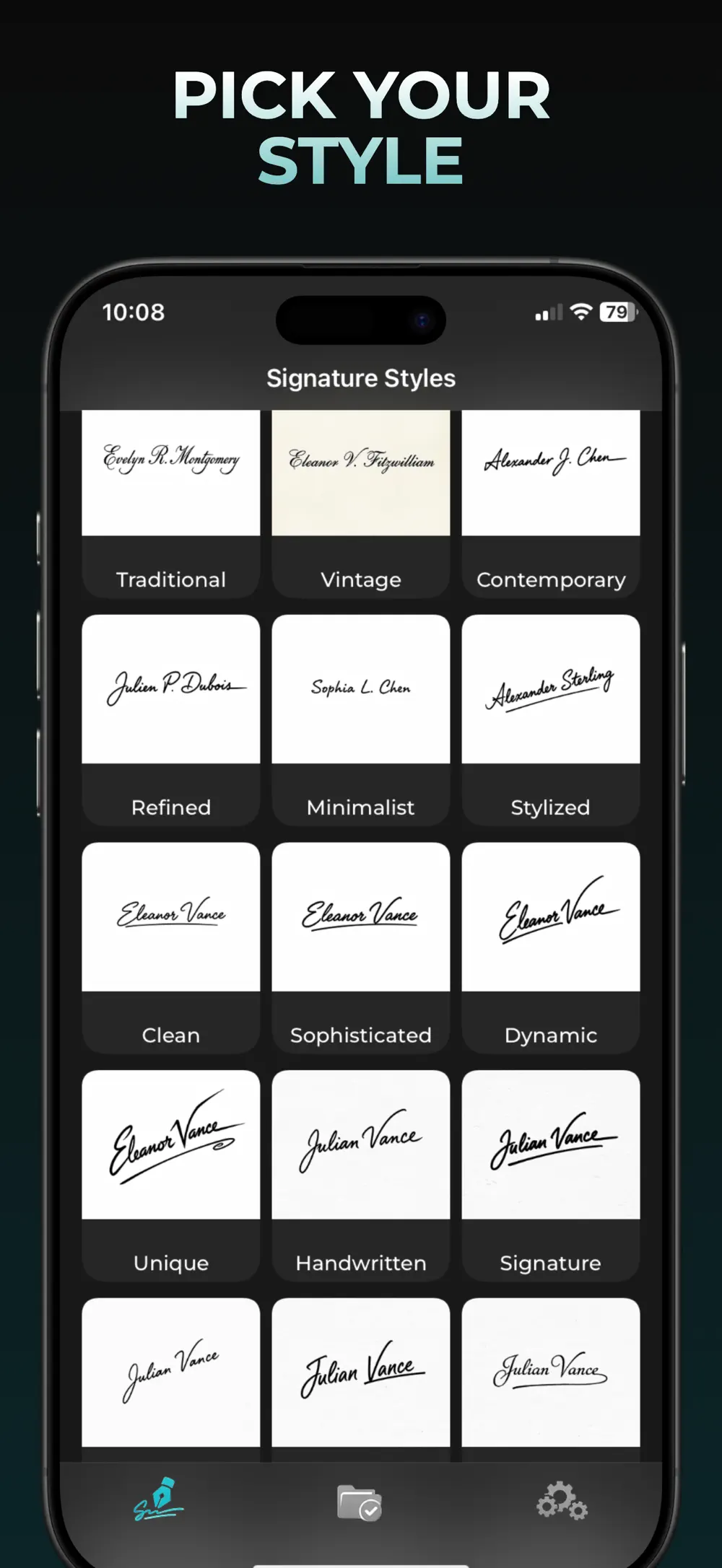
Open AutoSign and browse Signature Styles. Start with Minimalist or Clean if you want fewer flourishes. Traditional or Vintage can give you a more ornamental result. The preview is a useful starting point; your own name will produce a different design.
Pick one style first. Comparing a small number of designs makes it easier to decide which letter shapes you like.
Step 2
Enter your name and generate
After choosing a style, select Text in the creation sheet. Type your name in Your name, check the spelling, and tap Generate.
Enter the letters you want to appear rather than instructions or a long description. You can also select Hand Drawing if you prefer your own handwriting.
Step 3
Check the letters before keeping a design
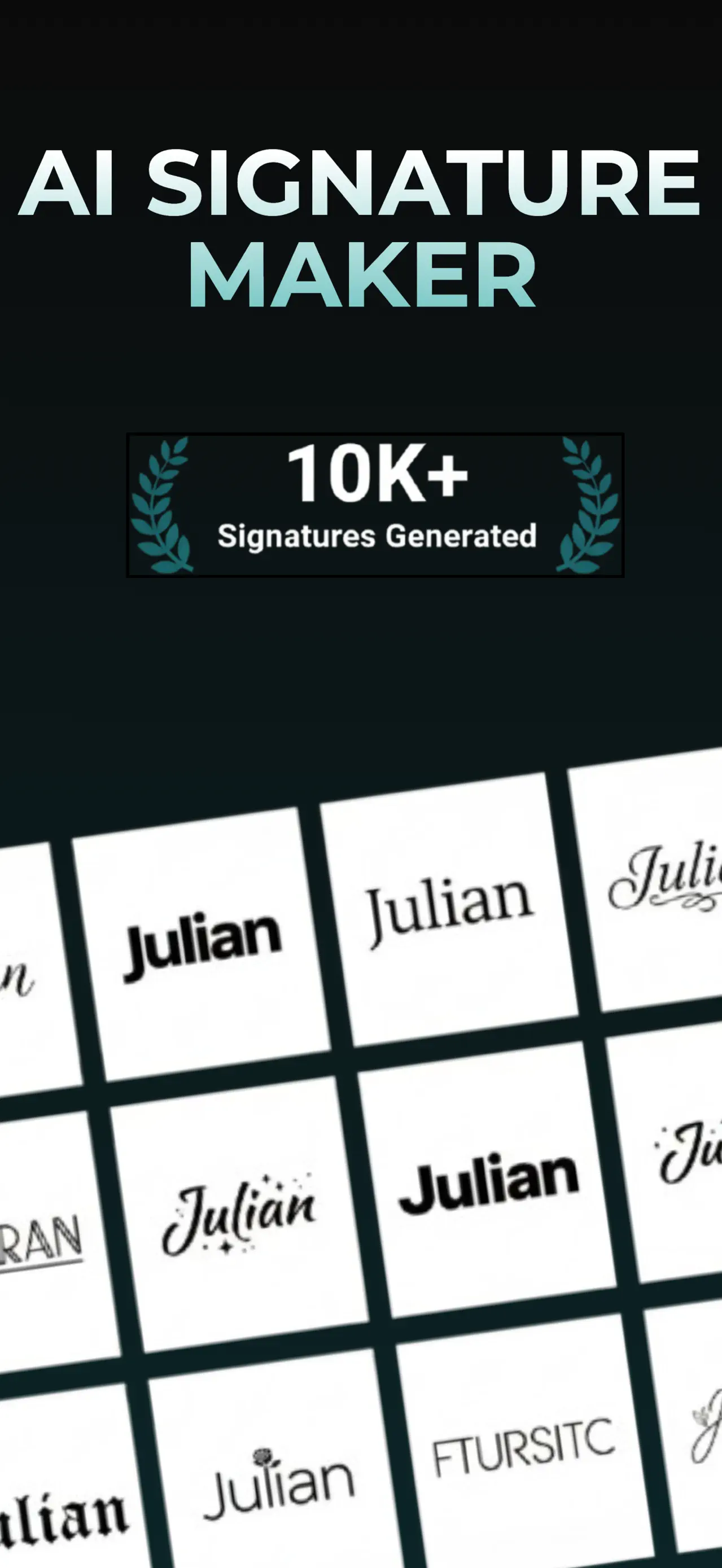
Inspect every letter in the generated signature. AI-generated lettering can differ from the name you entered. Pay attention to initials, repeated letters, spaces and the last letter of your surname.
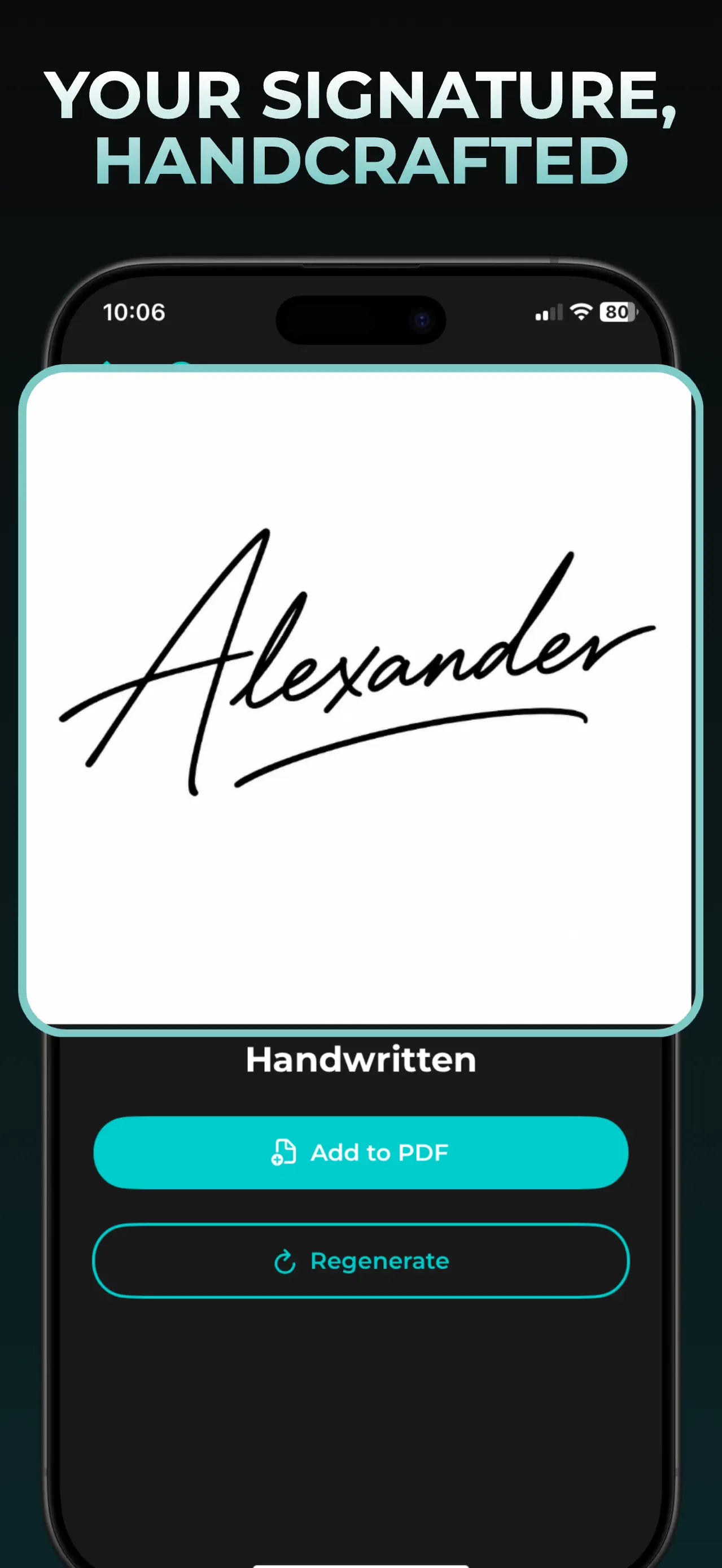
Use Regenerate to try another result if needed, within your available generation allowance. If a decorative style makes the name hard to read, return to the style picker and try a simpler one.
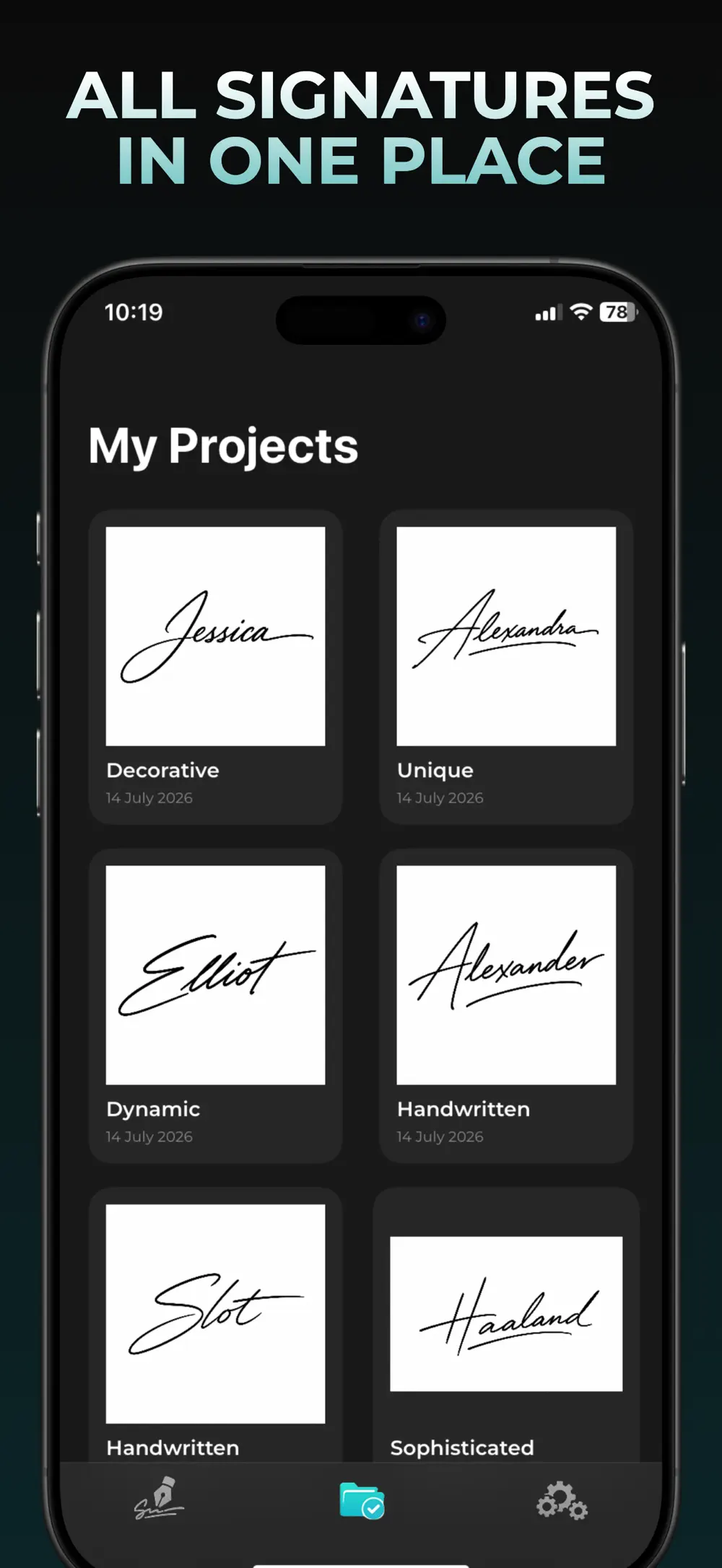
The App Store example uses “Alexander.” Treat it as a design reference, not a guarantee that your name will have the same letter shapes.
Step 4
Save it to My Projects and choose how to use it
Tap Done to keep your result in My Projects. Open it later when you want to use it again.
Sharing a signature image or saving it to Photos requires Pro. For documents, tap Add to PDF and follow our PDF signing guide; that workflow also requires Pro.
How to choose between designs
| Your priority | What to check |
|---|---|
| Readability | Can you recognize the initials and surname at a small size? |
| A restrained look | Try Minimalist or Clean and compare the amount of flourish. |
| A decorative look | Try Traditional or Vintage; check that ornaments do not hide letters. |
| Writing it yourself | Choose a shape you can repeat comfortably, or use Hand Drawing. |
Common questions
Can I use just my initials?
You can enter initials in the name field. For forms and agreements, check whether the recipient requires your full name or a particular signature format.
Will a generated signature match my handwriting?
Typing a name creates a new design in the chosen style. It does not reproduce your existing handwriting. Use Hand Drawing if you want to write your own mark.
Why does Generate stop working?
Check your internet connection and the generation allowance shown in the app. Free use is limited. Try a shorter, correctly spelled name if you are struggling to get readable lettering.
Is this a verified digital signature?
It is a signature image. AutoSign does not certify identity or create an audit trail. A recipient may require another signing process for their document.
Screenshots are from AutoSign’s App Store listing. Controls may vary by app version.
View AutoSign on the App Store ↗